The right router is one the household can keep secure and supported while providing usable connectivity where it is needed. Start by identifying the current problem. Slow service, weak Wi-Fi in one room and an unsupported router are different issues, and buying a faster-looking box may not fix all of them.
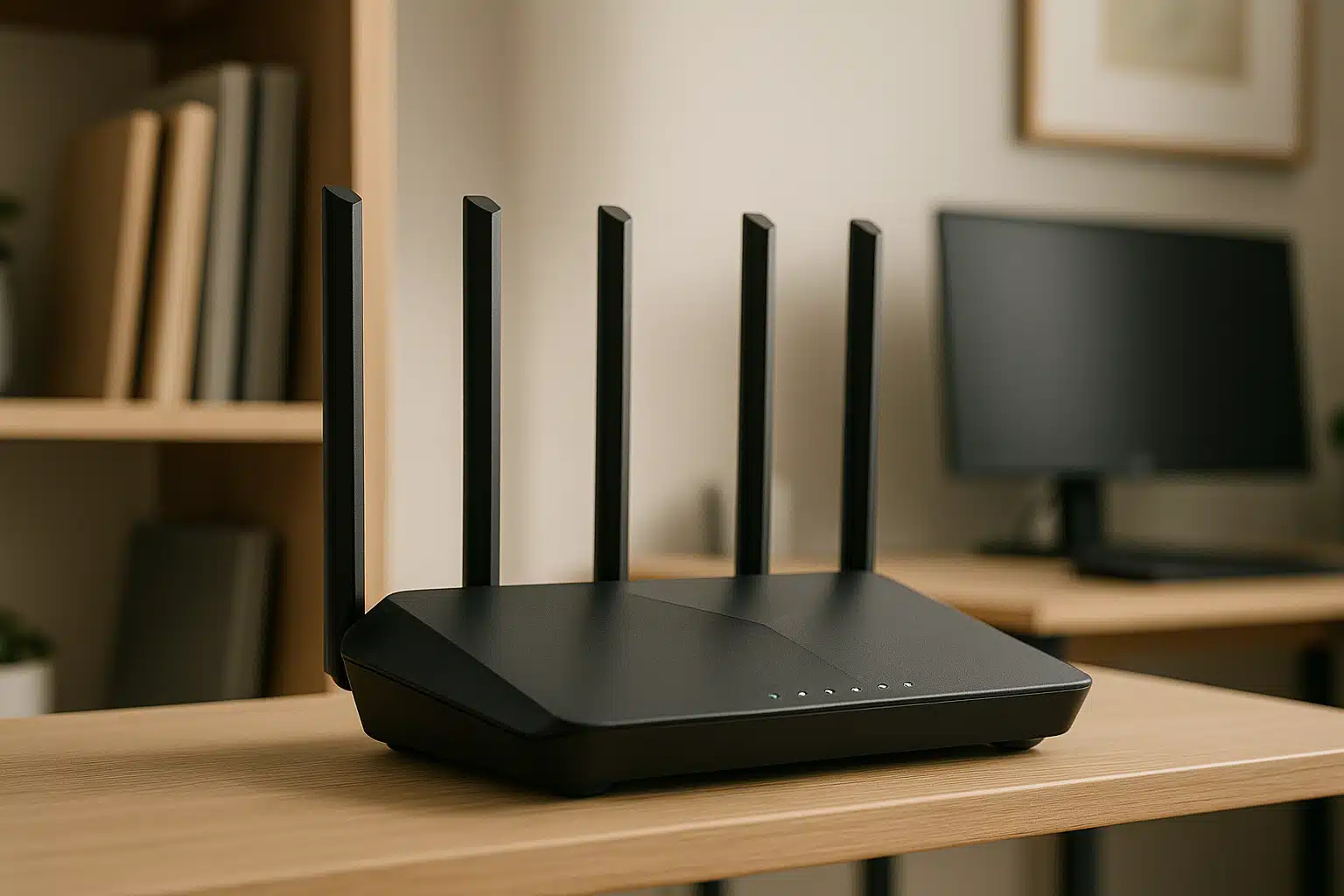
Describe the connection and its dependencies
Record the internet provider, existing equipment and devices that need reconnecting after a change. Check which devices use Wi-Fi, Ethernet, cellular service or another connection. A medical alert product does not automatically depend on the home router just because it has an app.
Ask the provider what equipment can be replaced and what must remain. A router is not necessarily a modem or fiber terminal, and bundled telephone or other services can add requirements. Confirm compatibility for the actual service before ordering.
Separate coverage from internet speed
Identify where ordinary tasks fail: a video call at the usual chair, a doorbell near the entrance or a phone in the bedroom. Ask for help comparing the connection near the router with those locations. This can distinguish a local coverage issue from an internet-service problem.
Placement, building materials and the connection between mesh units affect the result. A mesh system is an option to assess, not a guarantee of coverage throughout every home. Additional units also need suitable locations, power and maintenance.
Check security and support information
The FTC home-network guidance recommends supported encryption, protected router credentials and software updates. Ask how the proposed model receives updates and whether the particular hardware version remains supported.
Check WPA3 support and compatibility with existing devices; WPA2 Personal is also included in FTC guidance. Lack of WPA3 alone does not prove that an otherwise supported router must be replaced. Unsupported software, an unresolved limitation or the provider’s requirements may be more decisive.
Compare management and recovery
- Setup: does it use an app, browser interface or provider-managed process?
- Accounts: who owns any required account and its recovery methods?
- Updates: are they automatic, and how can their status be checked?
- Guest access: what isolation and local-device permissions are available?
- Support: which verified channel helps if the resident loses connectivity?
- Cost: are needed features included or tied to an ongoing subscription?
A simple app can help, but it also needs a supported phone and a manageable login. Do not leave all administration dependent on a helper who may be unavailable. Keep a private equipment record and an agreed support contact.
Existing product option
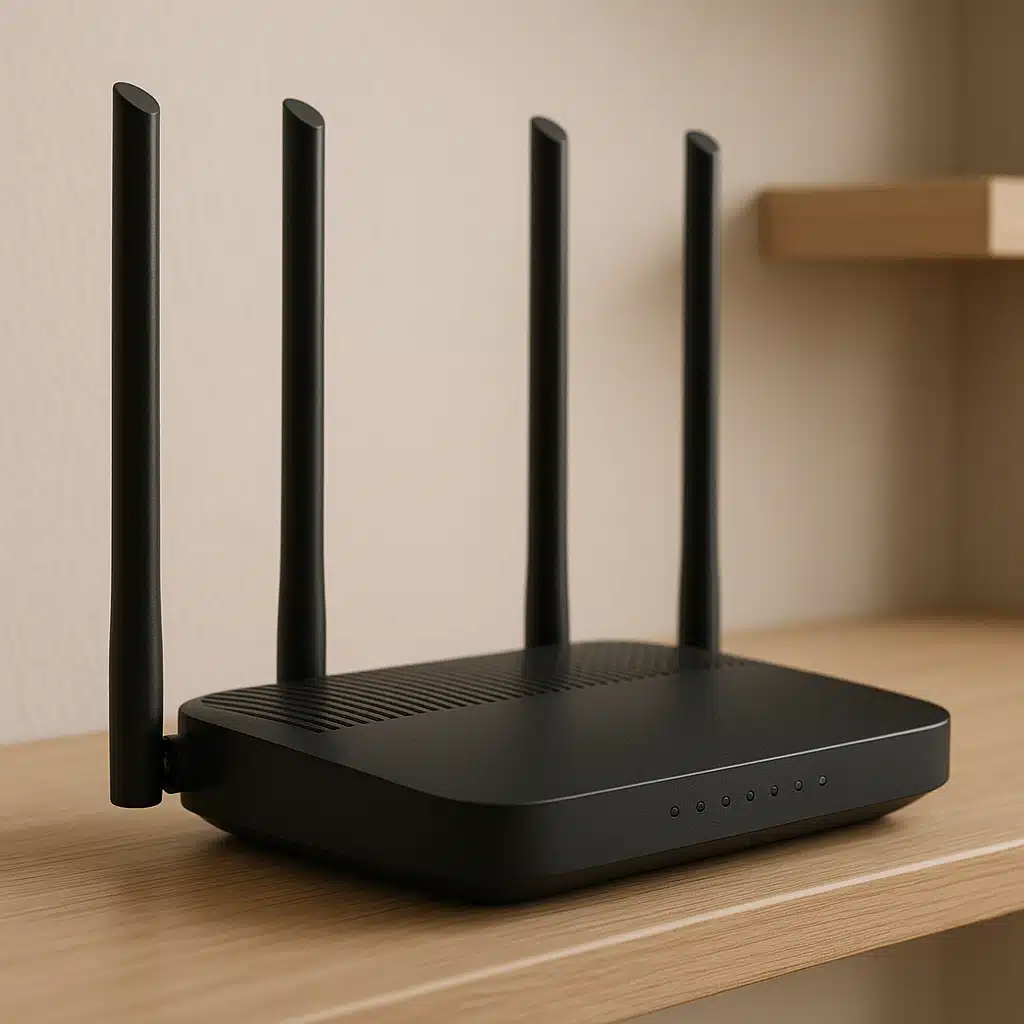
As an Amazon Associate, Aging Safely Home earns from qualifying purchases. The existing TP-Link Archer AX21 router link is retained as an option to investigate. Compare the listing’s exact hardware version with the manufacturer’s specifications and support. This guide does not claim hands-on testing or compatibility with every provider arrangement.
Plan the changeover before removing equipment
Choose a suitable time and tell the resident which services may be interrupted. Follow the provider and manufacturer instructions for connections and configuration. Changing the network name, password or security mode may require separate setup on connected devices.
Keep the old arrangement available until the permitted changeover is verified, following any provider return or service instructions. Do not assume copying a network name transfers every feature or device connection correctly.
Verify the household’s actual tasks
Check normal browsing, calling and the connected-device functions that matter using their documented test procedures. A successful speed test at one location is not evidence that a doorbell, shared camera or other service is functioning everywhere needed.
Illustrative example: a replacement improves the bedroom signal, but the household telephone no longer works because the provider’s gateway was removed. Checking the service dependencies before purchase could have exposed that requirement.
Use the Wi-Fi setup guide for settings and the outage guide for backup planning. A new router does not itself provide power or uninterrupted internet service.
Leave a Reply